What Is Wireless MAC Filtering and How Does It Work?
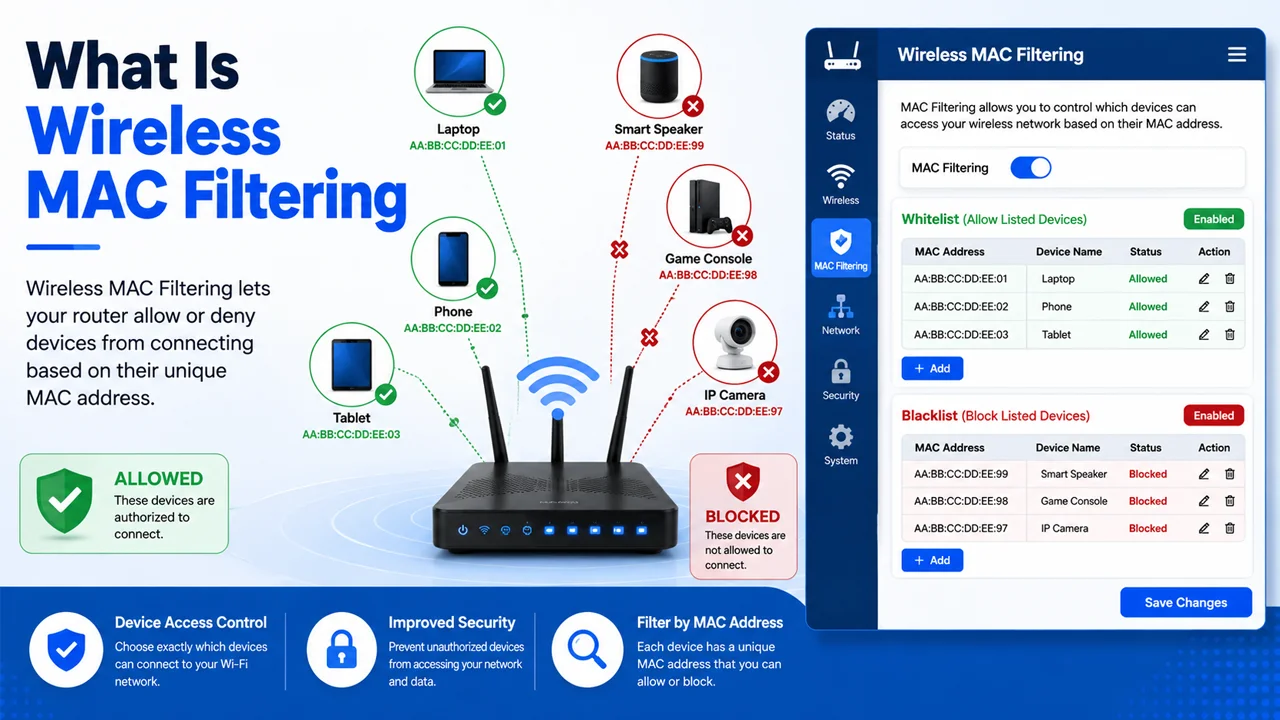
Wireless MAC Filtering is a router security feature that helps you control which devices can connect to your Wi-Fi network. It works by checking the MAC address of a device before allowing or blocking network access. In simple words, it acts like a digital gatekeeper for your wireless router.
This feature is useful when you want extra control over your home or office Wi-Fi. For example, you can allow only your personal phone, laptop, smart TV, or printer to connect. If an unknown device tries to join, the router can block it based on your MAC Filtering settings.
However, Wireless MAC Filtering should not be used as your only security method. It is helpful, but it works best when combined with a strong Wi-Fi password, modern encryption, disabled WPS, and regular router monitoring. Think of it as an extra lock on the door, not the whole security system.
What Is a MAC Address?
A MAC Address, also known as a Media Access Control Address, is a unique address assigned to a device’s network card. Every device that connects to Wi-Fi, such as a phone, laptop, tablet, gaming console, or smart TV, has its own MAC address. This address helps the router recognize each device on the network.
Unlike an IP address, which can change depending on the network, a MAC address is linked to the device’s hardware. It usually looks like a combination of letters and numbers, such as A1:B2:C3:D4:E5:F6. Routers use this address to identify, allow, block, or manage devices connected to the wireless network.
How Wireless MAC Filtering Works
Wireless MAC Filtering works by checking the MAC address of each device that tries to connect to your Wi-Fi router. The router compares that address with the list you have created in the admin panel. Based on your settings, it can allow trusted devices or block unwanted ones.
- The router reads the MAC address of a device trying to connect.
- It compares the MAC address with your allowed or blocked list.
- If the device is on the whitelist, it can connect to Wi-Fi.
- If the device is on the blacklist, it is blocked from the network.
- Some routers allow only approved devices and reject all others.
- MAC Filtering can help with basic internet access control.
- It is commonly managed from the wireless section of the router admin panel.
- It should be used with a strong Wi-Fi password for better security.
Where to Find MAC Filtering in Router Settings
You can usually find MAC Filtering inside your router’s admin panel. The exact location may be different depending on the router brand, but it is commonly available under Wireless, Wi-Fi Settings, Security, Access Control, or Advanced Settings. You need to log in to your router first before changing these options.
To access the router admin panel, connect your device to the router network and open the router login IP address in a browser. After logging in with the admin username and password, look for the wireless section. From there, you can enable MAC Filtering and add device MAC addresses to the allowed or blocked list.
Wireless Section of Router Admin Panel
- Open your router admin panel using its login IP address.
- Enter the router admin username and password.
- Go to the Wireless or Wi-Fi Settings section.
- Look for MAC Filtering, Wireless MAC Filter, or Access Control.
- Select whether you want to allow or block the listed devices.
- Add the MAC address of each device carefully.
- Save the settings after making changes.
- Restart the router if the changes do not apply immediately.
Common Router Login Pages
- Different routers use different default login IP addresses.
- The login IP is usually printed on the router label.
- You can also find it from your device’s network gateway settings.
- Common router login pages include 10.0.0.1, 192.168.0.1, and 192.168.1.1.
- Make sure your device is connected to the same router network.
- Type the IP address directly into the browser address bar.
- Do not type the router IP into a search engine box.
- If one IP does not open, try checking your default gateway.
10.0.0.1 Router Login
- 10.0.0.1 is commonly used by Xfinity Gateway and some other routers.
- Connect your phone or computer to the router’s Wi-Fi network.
- Open a browser and type http://10.0.0.1 in the address bar.
- Enter the admin username and password.
- Go to the wireless or connected devices section.
- Find MAC Filtering, device control, or access control options.
- Add trusted device MAC addresses to the allowed list.
- Save the changes and test your Wi-Fi connection.
192.168.0.1 Router Login
- 192.168.0.1 is a common login IP for many router brands.
- It is often used by TP-Link, D-Link, and other home routers.
- Open your browser and enter http://192.168.0.1.
- Log in using the router admin details.
- Go to wireless settings or security settings.
- Search for MAC Address Filter or Access Control.
- Add the MAC address of the device you want to allow or block.
- Save your settings before closing the admin panel.
192.168.1.1 Router Login
- 192.168.1.1 is another popular router admin login address.
- It is used by many home and office Wi-Fi routers.
- Connect to your router network before opening the login page.
- Type http://192.168.1.1 into the browser address bar.
- Sign in with the router admin username and password.
- Open the wireless section from the settings menu.
- Find MAC Filtering or wireless access control.
- Add devices to the whitelist or blacklist based on your needs.
How to Enable Wireless MAC Filtering
Enabling Wireless MAC Filtering is usually done from your router admin panel. You need to log in to your router, open the wireless or security settings, and then add the MAC addresses of the devices you want to allow or block. The exact menu name may be different on each router, but the basic process is almost the same.
- Connect your phone, laptop, or PC to your Wi-Fi network.
- Open your router login page, such as 10.0.0.1, 192.168.0.1, or 192.168.1.1.
- Enter the router admin username and password.
- Go to the Wireless, Wi-Fi, Security, or Access Control section.
- Find the option named MAC Filtering, Wireless MAC Filter, or MAC Address Control.
- Turn on MAC Filtering from the settings panel.
- Choose whether you want to use a whitelist or blacklist.
- Add the MAC address of each device carefully.
- Save or apply the settings.
- Reconnect your devices to make sure everything is working properly.
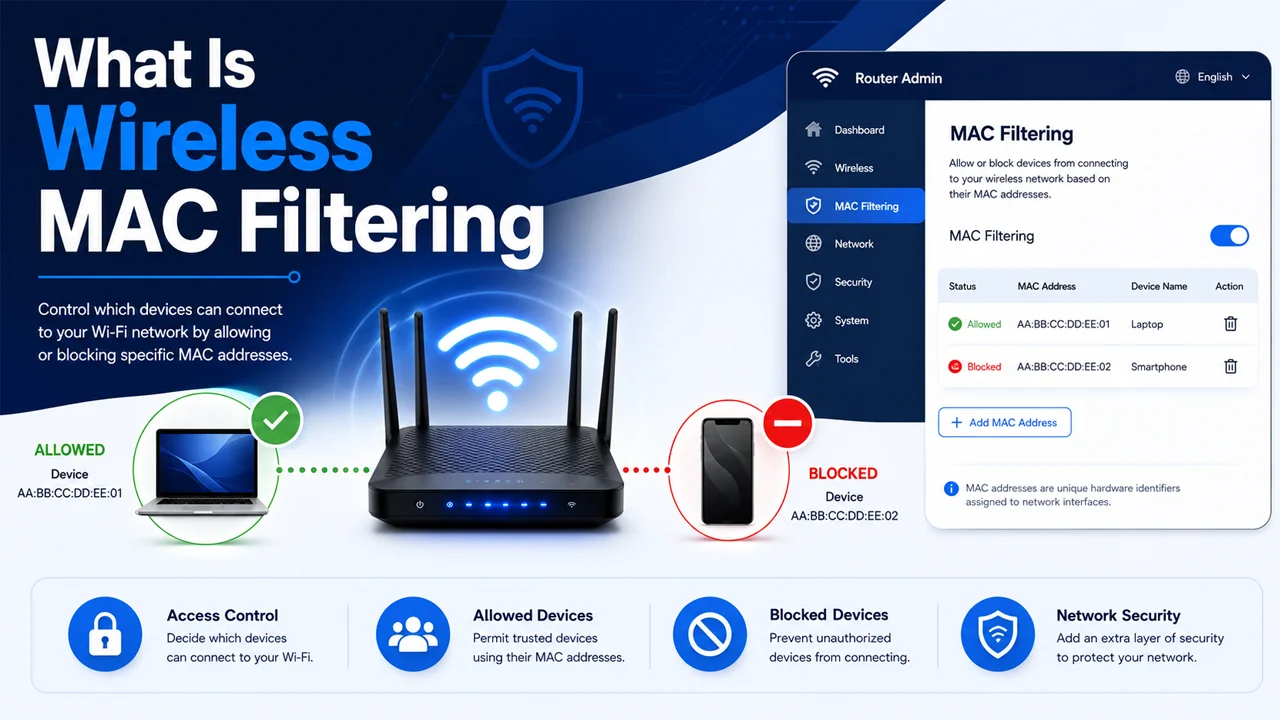
Whitelist vs Blacklist: Which One Is Better?
A whitelist allows only selected devices to connect to your Wi-Fi network. This is the stricter and safer option because every new device must be approved before it can access the internet. If you have a small home network with limited devices, the whitelist method can give you better control.
A blacklist blocks only specific devices while allowing other devices to connect normally. This method is easier to manage because you do not need to add every trusted device manually. However, it is less strict than a whitelist because unknown devices may still connect if they know your Wi-Fi password and are not added to the blocked list.
Common Problems with Wireless MAC Filtering
- A trusted device may not connect if its MAC address was entered incorrectly.
- Some phones use random MAC addresses for privacy, which can confuse the router.
- MAC Filtering may block a new device until you manually add it to the allowed list.
- WPS may be disabled automatically when MAC Filtering is turned on.
- Router settings may use different names, such as Access Control or Device Control.
- A device may appear as “Unknown” in the connected devices list.
- MAC Filtering does not stop advanced users from using MAC address spoofing.
- You may lock yourself out if you forget to add your own device to the allowed list.
- Some routers require a restart before MAC Filtering changes work properly.
- MAC Filtering can become difficult to manage if you have many smart home devices.
Final Thoughts
Wireless MAC Filtering is a useful router security feature for controlling which devices can connect to your Wi-Fi network. It works by checking each device’s MAC address and then allowing or blocking access based on your settings. This makes it helpful for blocking unknown devices, managing family devices, and adding another layer of control to your home network.
Still, MAC Filtering should not be your only Wi-Fi security method. Since MAC addresses can be spoofed, you should also use a strong Wi-Fi password, modern encryption, a secure router admin password, and disable WPS if possible. Think of MAC Filtering as an extra safety step, not a complete security wall.
Frequently Asked Questions (FAQs)
What is Wireless MAC Filtering?
Wireless MAC Filtering is a router security feature that allows or blocks devices based on their MAC address. It helps control which phones, laptops, tablets, or smart devices can connect to your Wi-Fi network.
Is MAC Filtering good for Wi-Fi security?
Yes, MAC Filtering can add an extra layer of Wi-Fi security, but it should not be used alone. It works best with a strong Wi-Fi password, WPA2 or WPA3 encryption, disabled WPS, and regular router monitoring.
Can MAC Filtering block unknown devices?
Yes, MAC Filtering can block unknown devices if you add them to a blacklist or use a whitelist that allows only approved devices. This can help stop unwanted users from accessing your wireless network.
What is better, a whitelist or a blacklist?
A whitelist is usually better for stronger control because only approved devices can connect. A blacklist is easier to manage because it only blocks selected devices, but it is not as strict as a whitelist.
Can someone bypass MAC Filtering?
Yes, a skilled user may bypass MAC Filtering through MAC address spoofing. That is why MAC Filtering should be treated as an extra security feature, not a complete replacement for strong Wi-Fi protection.