How to Set Up Port Triggering on Xfinity Router
Port triggering on an Xfinity Router is an advanced network setting that helps certain apps, games, and online services connect more smoothly. It works by opening specific ports only when a device inside your home network needs them. This makes it useful for users who face connection issues while gaming, using voice chat, or running apps that require special network access.
Many Xfinity Wireless Gateway users hear about port triggering when they are trying to fix strict NAT type, multiplayer errors, or failed voice communication. Instead of keeping ports open all the time, port triggering opens them temporarily when outgoing traffic activates the rule. This gives your device a better chance to communicate with external servers without making the setup too complicated.
You can usually manage port triggering through the Xfinity Router Admin Panel by visiting 10.0.0.1 from a connected device. Once you log in, the Advanced settings section may include options for port triggering, firewall settings, and other network controls. Before changing anything, it is important to understand what each port setting means so you do not create unnecessary security risks.
What Is Port Triggering?
Port triggering is a router feature that temporarily opens an incoming port when a device on your network first sends traffic through a specific outgoing port. In simple words, your device “triggers” the router, and then the router allows certain outside traffic to come back in. Once the activity stops, the opened port closes again automatically.
This feature is commonly used for online gaming, video calling, voice chat, and apps that need two-way communication with external servers. Unlike port forwarding, port triggering does not keep the port open permanently for one fixed device. That makes it a flexible option for home networks where different devices may use the same service at different times.
How Port Triggering Works on an Xfinity Wireless Gateway
Port triggering on an Xfinity Wireless Gateway works like a smart door that opens only after someone inside the house knocks first. When a device sends outgoing traffic through a trigger port, the router recognizes the request and temporarily opens the matching target port for incoming traffic. This helps the app or game receive replies from outside servers more smoothly.
Trigger Port
- The trigger port is the outgoing port that starts the port triggering rule.
- When your device sends traffic through this port, the Xfinity Router activates the rule.
- It tells the router that a specific app, game, or service needs temporary incoming access.
- The trigger port is usually provided by the app, game, or device support guide.
- If the trigger port is entered incorrectly, the router will not know when to open the target port.
Target Port
- The target port is the incoming port that opens after the trigger port is detected.
- It allows outside servers to send traffic back to your device.
- The target port may be the same as the trigger port, but it can also be different.
- Some apps require a single target port, while others need a port range.
- You should only enter target ports that are required by a trusted app or service.
Protocol Type
- Protocol type tells the router how the traffic should be handled.
- The common options are TCP, UDP, or Both.
- TCP is often used for stable and reliable data transfer.
- UDP is commonly used for gaming, streaming, voice chat, and real-time apps.
- If you are unsure, check the official app or game instructions before choosing a protocol.
Temporary Open Connection
- Port triggering opens the port only when the trigger port becomes active.
- The port does not stay open permanently like port forwarding.
- When the app or game stops using the connection, the router closes the port again.
- This temporary behavior can help reduce unnecessary exposure on your home network.
- It is useful for users who need special access but do not want ports open all the time.
How to Log In to Xfinity Router Admin Panel
To set up port triggering, you first need to log in to the Xfinity Router Admin Panel. This panel lets you manage advanced settings like Wi-Fi, firewall, connected devices, port forwarding, and port triggering. Make sure your device is connected to the same Xfinity network before opening the router login page.
- Connect your phone, laptop, or PC to your Xfinity Wi-Fi network.
- Open a web browser such as Chrome, Edge, Safari, or Firefox.
- Type 10.0.0.1 in the browser address bar.
- Do not type the address into Google search; enter it directly in the URL bar.
- Wait for the Xfinity Gateway login page to appear.
- Enter the router admin username and password.
- If you never changed the login details, check the default router credentials.
- After logging in, go to the Advanced settings section.
- Look for Port Triggering or similar network options.
- Avoid changing settings you do not understand, because wrong settings can affect your connection.
How to Set Up Port Triggering on Xfinity Router
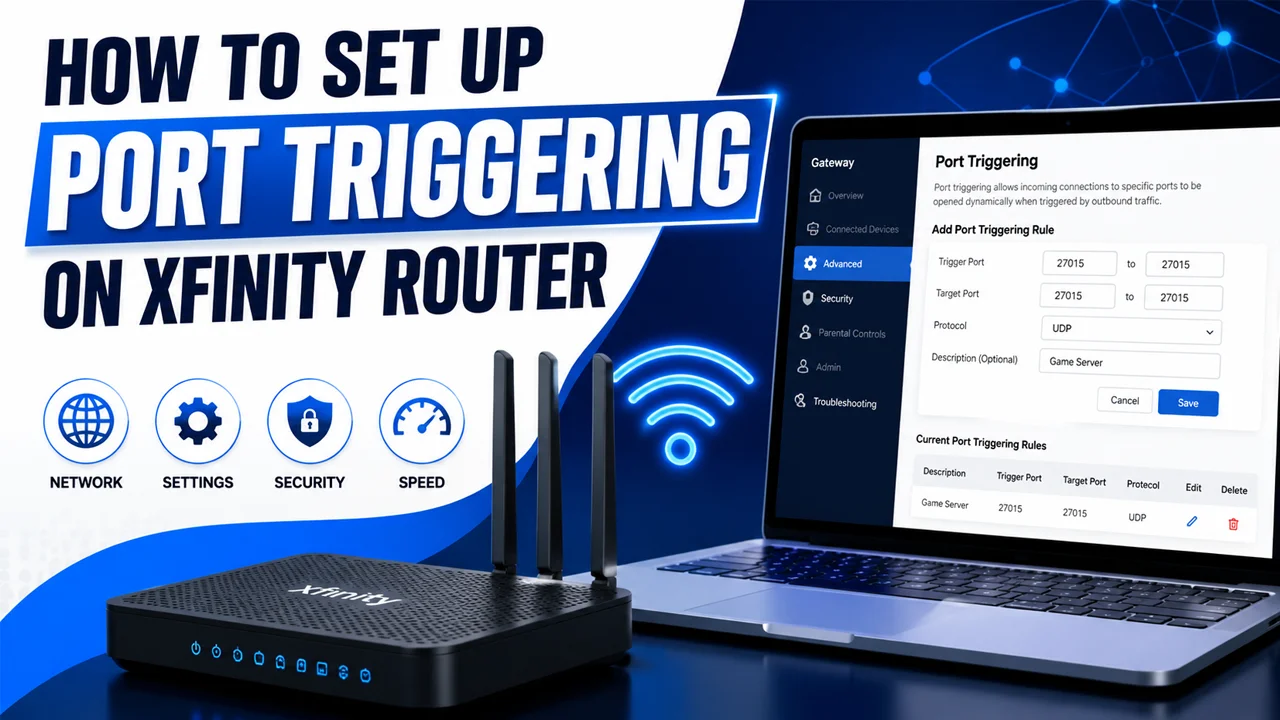
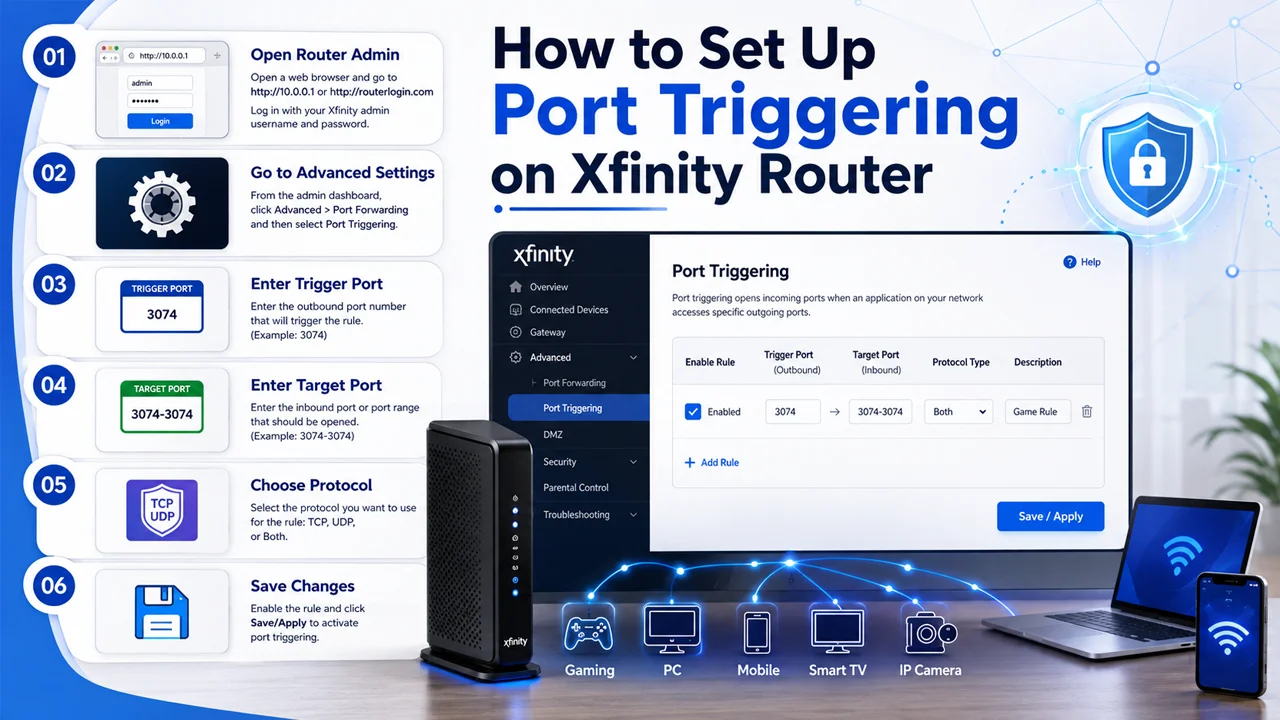
Setting up port triggering on an Xfinity Router is done from the Admin Panel after you log in through http://10.0.0.1. Once inside the dashboard, open the Advanced menu and look for the Port Triggering option. This feature may appear near other advanced tools like firewall settings, port forwarding, and device management.
After opening the port triggering section, enable the feature and add a new rule. You will need to enter the rule name, trigger port, target port, and protocol type such as TCP, UDP, or both. Always use the port numbers recommended by the app, game, or service you are setting up, because random ports can create connection problems or security risks.
When the rule is complete, click Save or Apply to confirm the changes. Then open the app, game, or service and test whether the connection works better. If the issue continues, restart your Xfinity Wireless Gateway, check the port numbers again, and make sure the correct protocol is selected.
Common Problems While Setting Up Port Triggering
- The 10.0.0.1 login page does not open.
- The device is not connected to the Xfinity Router network.
- The router admin username or password is incorrect.
- The Port Triggering option is missing from the Admin Panel.
- The gateway model or firmware does not support the same settings layout.
- The trigger port number is entered incorrectly.
- The target port number or port range is wrong.
- TCP is selected when the app needs UDP.
- UDP is selected when the app needs TCP.
- The port triggering rule is created but not enabled.
- Another router rule is already using the same port.
- The app or game actually requires port forwarding instead of port triggering.
- Xfinity firewall settings are blocking the connection.
- The device has a weak Wi-Fi signal or unstable internet connection.
- The Xfinity Gateway needs to be restarted after saving changes.
- The app, game, or service is down from the server side.
- Security software on the computer is blocking network traffic.
- Too many unnecessary port rules are already added.
- The user enters random ports instead of official app-recommended ports.
- The connection works on one device but fails on another due to device-specific settings.
Final Thoughts
Setting up port triggering on an Xfinity Router can help improve connection performance for games, voice chat apps, and online services that need temporary port access. The process is simple when you know where to go: log in through http://10.0.0.1, open the advanced settings, enable port triggering, and add the correct port details. Always use trusted port numbers from the official app or game guide instead of guessing random values. When used carefully, port triggering can make your network more flexible without keeping ports open all the time.
Frequently Asked Questions (FAQs)
What is port triggering on an Xfinity Router?
Port triggering is an advanced router feature that opens specific incoming ports only after a device on your network sends outgoing traffic through a trigger port. It is useful for apps, games, and services that need temporary two-way communication.
How do I access port triggering settings on Xfinity Gateway?
You can access the settings by connecting to your Xfinity network and opening http://10.0.0.1 in your browser. After logging in to the Admin Panel, go to the Advanced section and look for Port Triggering.
Is port triggering the same as port forwarding?
No, port triggering and port forwarding are different. Port triggering opens ports temporarily when needed, while port forwarding keeps selected ports open for a specific device all the time.
Why is port triggering not working on my Xfinity Router?
Port triggering may not work if the trigger port, target port, or protocol type is entered incorrectly. It may also fail if the app needs port forwarding instead, the router firewall blocks traffic, or the gateway needs a restart.
Is port triggering safe to use?
Port triggering is generally safer than leaving ports open permanently because it opens ports only when a device triggers them. Still, you should only create rules for trusted apps and avoid opening unknown or unnecessary ports.