
192.168.1.1 is one of the most commonly used router login IP addresses for accessing the admin panel of a home or office network. Through this IP address, users can manage important router settings such as Wi-Fi name, Wi-Fi password, security options, connected devices, and internet configuration. It works as a gateway between your local network and the router’s control dashboard. Whether you want to improve Wi-Fi security or fix connection issues, 192.168.1.1 is often the first place to start.
What Is 192.168.1.1?
192.168.1.1 is a private IP address used by many routers as their default gateway. It is not a public website, so it only opens when your device is connected to the same router network. When you enter this IP address into your browser, it takes you to the router login page, where you can access the admin panel.
This IP address is mainly used to control local network settings. From the admin dashboard, you can change the SSID, update the Wi-Fi password, manage LAN and WAN settings, enable parental controls, create a guest WiFi network, and adjust firewall options. In simple words, 192.168.1.1 is like the main control room for your router.
How to Access the 192.168.1.1 Admin Panel
Accessing the 192.168.1.1 admin panel is simple if your device is connected to the same router network. You can open it through any browser by typing the IP address directly into the address bar. Once the login page appears, enter your router’s admin username and password to access the dashboard. From there, you can manage Wi-Fi, security, LAN, WAN, and other router settings.
- Connect your phone, laptop, or PC to the router’s Wi-Fi or Ethernet network.
- Open any browser such as Chrome, Firefox, Edge, or Safari.
- Type 192.168.1.1 or http://192.168.1.1 in the address bar.
- Press Enter and wait for the router login page to load.
- Enter the router admin username and password.
- Click Login or Sign In to open the admin panel.
- If the page does not open, check whether your router uses another IP like 192.168.0.1 or 10.0.0.1.
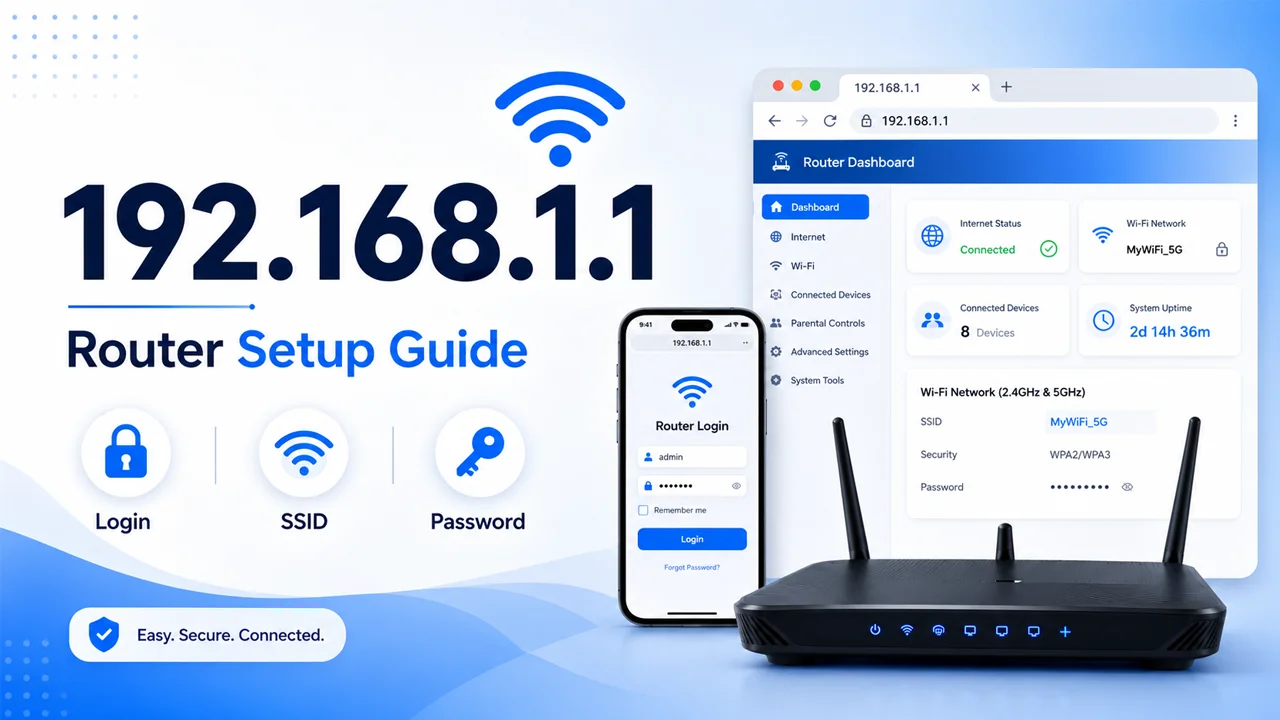
What Can You Do Inside the Router Admin Panel?
Inside the router admin panel, you can control almost every important setting of your home or office network. It allows you to change Wi-Fi details, improve security, manage connected devices, create a guest network, and adjust advanced internet settings.
Change Wi-Fi Network Name SSID
- Open the Wireless or Wi-Fi Settings section.
- Find the option labeled SSID or Network Name.
- Enter a new Wi-Fi name that is easy to recognize.
- Avoid using personal details like your full name or phone number.
- Save the changes and reconnect your devices to the new network name.
Change Wi-Fi Password
- Go to the Wireless Security or Wi-Fi Password section.
- Choose a strong password with letters, numbers, and symbols.
- Avoid simple passwords like 12345678 or password.
- Save the new password after changing it.
- Reconnect all devices using the updated Wi-Fi password.
Manage LAN and WAN Settings
- Use LAN settings to manage your local network and connected devices.
- Use WAN settings to manage your internet connection from the service provider.
- Check your router’s default gateway, subnet mask, and IP settings.
- Avoid changing advanced LAN or WAN values unless you understand them.
- Restart the router if changes do not apply properly.
Setup Guest WiFi Network
- Open the Guest Network or Guest WiFi option.
- Turn on the guest network feature.
- Set a separate Wi-Fi name and password for visitors.
- Limit access so guests cannot reach your main devices.
- Save the settings and share only the guest password.
Setup Firewalls and Security Settings
- Go to the Security or Firewall section.
- Enable the firewall to help block unwanted traffic.
- Keep wireless encryption set to a secure option like WPA2 or WPA3.
- Disable unknown or risky features if you do not use them.
- Save your settings to improve router protection.
Port Triggering and Advanced Options
- Open the Advanced Settings or Port Triggering section.
- Use port triggering for specific apps, games, or services that need it.
- Enter the required port details carefully.
- Avoid opening unnecessary ports because they may create security risks.
- Save the settings and test whether the app or service works correctly.
Common 192.168.1.1 Login Problems
Sometimes, the 192.168.1.1 login page may not open or the admin details may not work. This usually happens because of a wrong IP address, unstable connection, browser issue, or incorrect username and password. In most cases, these problems are easy to fix if you check the basics first. Before changing advanced settings, make sure your device is properly connected to the router network.
- Make sure your phone, laptop, or PC is connected to the router’s Wi-Fi or Ethernet.
- Type 192.168.1.1 directly into the browser address bar, not the search box.
- Try using http://192.168.1.1 if the page does not load.
- Check if your router uses another default IP like 192.168.0.1 or 10.0.0.1.
- Restart your router and device to refresh the connection.
- Clear your browser cache or try another browser.
- Confirm that you are entering the correct admin username and password.
- If you forgot the admin password, press the RESET button to factory reset the router.
- Avoid changing random LAN, WAN, or security settings without knowing their purpose.
Final Thoughts
192.168.1.1 is an important router login IP address that helps users access and manage their network settings easily. Through the admin panel, you can change your Wi-Fi name, update your password, create a guest network, and improve router security. If the login page does not open, always check your connection, browser, and correct router IP first. By using 192.168.1.1 carefully, you can keep your home or office network more secure, stable, and easy to control.
Frequently Asked Questions (FAQs)
What is 192.168.1.1 used for?
192.168.1.1 is used to access the router admin panel. From there, you can manage Wi-Fi settings, security options, LAN/WAN settings, and connected devices.
Why is 192.168.1.1 not opening?
It may not open because your device is not connected to the router, the IP address is different, or there is a browser issue. Try 192.168.0.1 or 10.0.0.1 if 192.168.1.1 does not work.
Is 192.168.1.1 the same as my Wi-Fi password?
No, 192.168.1.1 is the router login IP address, while your Wi-Fi password is used to connect devices to the wireless network.
Can I change my Wi-Fi password from 192.168.1.1?
Yes, after logging into the admin panel, you can open the wireless settings section and change your Wi-Fi password easily.
What should I do if I forgot my router admin password?
If you forgot the admin password, check the router label for default login details. If that does not work, press and hold the RESET button to factory reset the router.