How to Change Router WiFi Password Easily
Change router WiFi Password settings regularly to protect your home internet connection from unwanted users. Your Wi-Fi password controls who can connect to your network, so it should never be weak, old, or shared with too many people. A secure password keeps your internet private and helps prevent unknown devices from joining your network.
Many people keep using the default Wi-Fi password that comes with their router. This may be convenient, but it is not always the safest option. If someone gets access to your password, they can use your internet, slow down your speed, or create security risks for your connected devices.
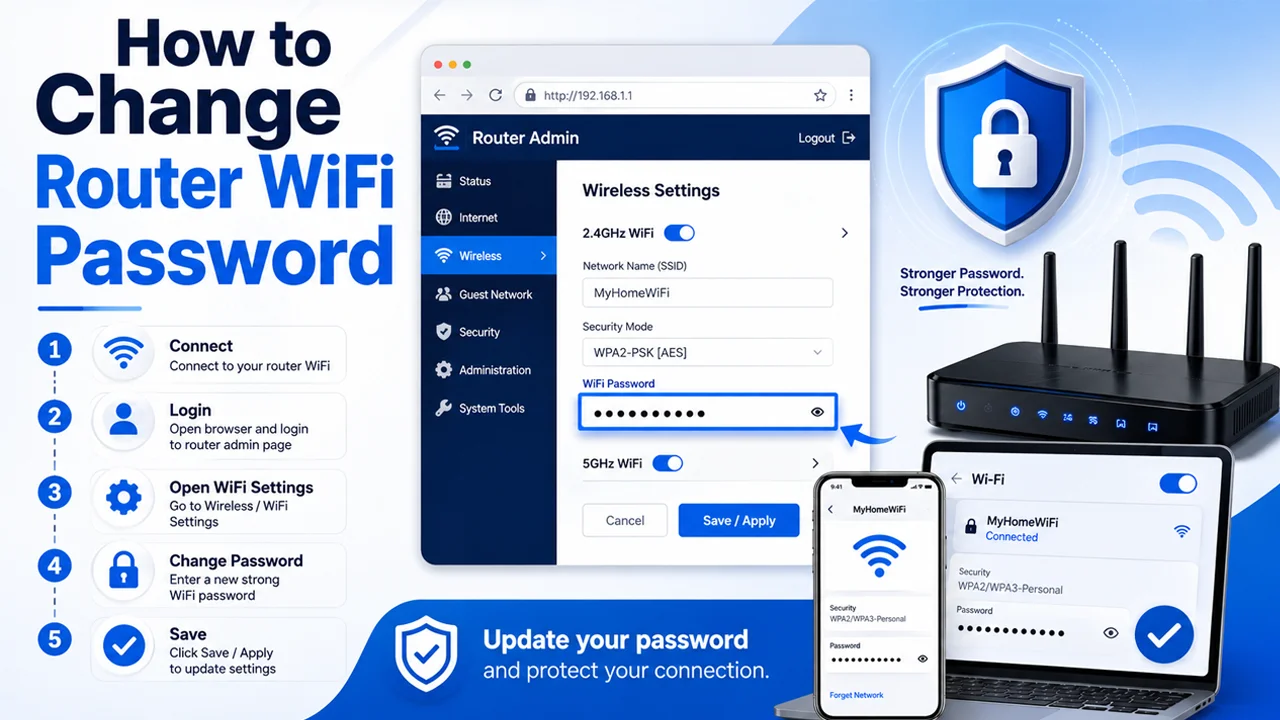
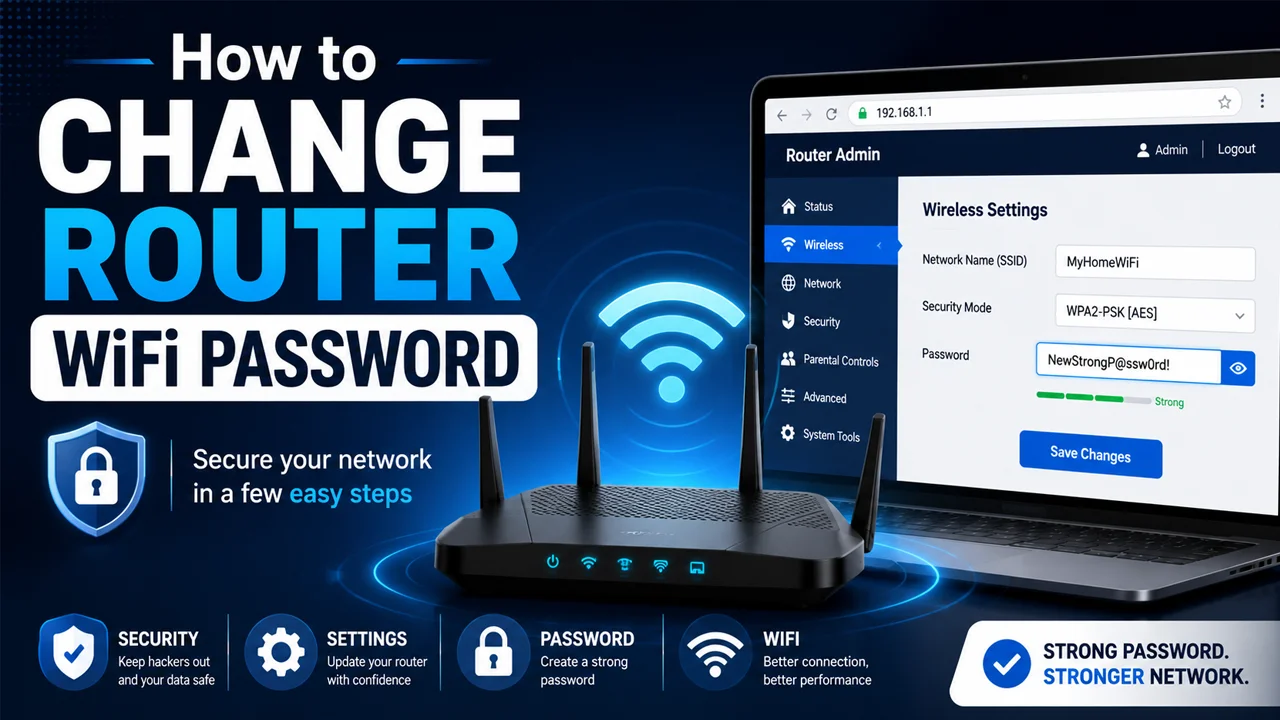
The good thing is that Change Router WiFi Password steps are simple and easy to follow. You only need to open your router Admin Panel, log in with the admin username and password, go to the Wi-Fi settings, update the Network Password field, and save the changes. Once done, your devices will reconnect using the new password.
Why Changing Your Wi-Fi Password Matters
Changing your Wi-Fi password matters because it helps stop unwanted connections. If your password is easy to guess or has been shared with many people, others may connect to your Wi-Fi without permission. This can slow down your internet and make your network less private.
A strong Wi-Fi password also helps protect sensitive information, so it is important to Change Router WiFi Password regularly. When your network is secure, it becomes harder for unknown users to access devices, personal data, login details, or credit card numbers. Think of your Wi-Fi password like a lock on your digital door the stronger it is, the safer your network stays.
How To Change Router WiFi Password Using 10.0.0.1
You can change your router WiFi password by logging in to the router Admin Panel through 10.0.0.1. This method lets you open the Wi-Fi settings, edit the Network Password field, and save a new password to secure your Wi-Fi Network.
Step 1: Connect to Your Wi-Fi Network
- Connect your phone, laptop, or PC to the same Wi-Fi Network you want to manage.
- Make sure you are not using mobile data while opening the router login page.
- If possible, use an Ethernet cable for a more stable connection.
- Your device must be connected to the router before accessing the Admin Panel.
Step 2: Open a Web Browser
- Open any web browser on your device, such as Chrome, Firefox, Edge, or Safari.
- You do not need to install any extra software to change the Wi-Fi password.
- Make sure your browser is working properly and connected to the internet.
- A fresh browser tab is best for opening the router login page.
Step 3: Type 10.0.0.1 in the URL Bar
- Click on the URL bar at the top of your web browser.
- Type https//:10.0.0.1 carefully in the URL bar.
- Press Enter to open the router login page.
- Do not type the IP address into the search box because it may show search results instead of the login page.
Step 4: Log In to the Router Admin Panel
- After the login page opens, enter your router login username and login password.
- The common default username is admin.
- The common default password is password.
- If these details do not work, check the router sticker, user manual, or your internet provider’s details.
Step 5: Open Gateway Menu
- Once you are inside the Admin Panel, look for the Gateway menu.
- This menu usually contains your router’s main settings.
- Click on Gateway to open more network options.
- The layout may look slightly different depending on your router model.
Step 6: Go to Connection and Wi-Fi Menu
- Under the Gateway menu, find the Connection option.
- Click on Connection to view internet and wireless settings.
- Now open the Wi-Fi menu.
- This section controls your Wi-Fi Network name, password, and wireless settings.
Step 7: Find Private Wi-Fi Network Section
- In the Wi-Fi menu, look for the Private Wi-Fi Network section.
- This section shows your main home Wi-Fi settings.
- You may see your current Wi-Fi name, security mode, and password options.
- If your router supports 2.4 GHz and 5 GHz bands, both networks may appear separately.
Step 8: Click the Edit Button
- Find the Edit button near your Private Wi-Fi Network settings.
- Click Edit to change your current Wi-Fi settings.
- Some routers may ask you to confirm before editing.
- If available, use the Show Network Password option to view the current password.
Step 9: Change the Network Password Field
- Find the Network Password field.
- Delete the old Wi-Fi Password from the field.
- Type your new strong Wi-Fi password carefully.
- Use a strong password combination with letters, numbers, and symbols.
Step 10: Save Settings
- After entering the new password, click the Save Settings button.
- Your router will apply the new Wi-Fi password.
- Your connected devices may disconnect from the Wi-Fi Network.
- Reconnect your phone, laptop, TV, and other devices using the new password.
How To Create a Strong Wi-Fi Password
Creating a strong Wi-Fi password is important because it protects your network from unwanted connections, data theft, and security risks. A weak password is like leaving your front door half open, while a strong password keeps your Wi-Fi Network private and safe.
- Use at least 12 characters in your Wi-Fi Password.
- Mix uppercase letters, lowercase letters, numbers, and symbols.
- Avoid simple passwords like 12345678, password123, or admin123.
- Do not use your name, phone number, birthday, or address.
- Create a password that is hard to guess but easy for you to remember.
- Example of a strong password: HomeWiFi@Secure27!
- Change your Wi-Fi password from time to time for better security.
- Do not share your main Wi-Fi password with everyone; use a Guest WiFi Network for visitors.
Common Problems While Changing the Router WiFi Password
- 10.0.0.1 page not opening: This usually happens when your device is not connected to the router network or the router uses a different login IP like 192.168.0.1 or 192.168.1.1.
- Typing the IP in the wrong place: Always type 10.0.0.1 in the browser URL bar, not in the Google search box, otherwise you may see search results instead of the router login page.
- Wrong admin username or password: Many routers use admin as the default username and password as the default password, but these details may be changed by the user or internet provider.
- Forgot router Admin Panel password: If you cannot remember the router login password, check the router sticker, user manual, or provider details before resetting the router.
- Wi-Fi settings not showing: Some routers have different menu names, so look for options like Gateway, Connection, Wi-Fi, Wireless Settings, or Private Wi-Fi Network.
- Edit button not working: If the Edit button does not respond, refresh the page, try another browser, or restart your router and open the Admin Panel again.
- Password not saving: Make sure your new Wi-Fi Password follows the router’s password rules, then click the Save Settings button properly.
- Devices disconnect after changing password: This is normal because all devices still remember the old password. Reconnect each device using the new Network Password.
- Old password still saved on devices: Forget the Wi-Fi Network from your phone, laptop, or smart TV, then connect again with the new password.
- Weak password warning: Some routers may reject simple passwords like 12345678, password123, or admin123, so use a strong password combination with letters, numbers, and symbols.
Final Thoughts
Change Router WiFi Password steps are simple but important for keeping your Wi-Fi network secure. It helps stop unwanted connections, protects sensitive information, and keeps your internet speed more stable. You can easily change the password by opening 10.0.0.1, logging in to the Admin Panel, going to the Wi-Fi menu, editing the Network Password field, and clicking Save Settings. After changing the password, reconnect all your devices with the new password. For better safety, always use a strong password combination and avoid sharing your main Wi-Fi password with everyone.
Frequently Asked Questions (FAQs)
How do I change my router WiFi password?
You can change router WiFi password by opening your router Admin Panel through 10.0.0.1, logging in with your admin username and password, going to the Wi-Fi settings, editing the Network Password field, and saving the new password.
What is the default username and password for 10.0.0.1?
The common default username is admin, and the common default password is password. However, these details may be different depending on your router model or internet provider.
Why does my Wi-Fi disconnect after changing the password?
Your Wi-Fi disconnects because your devices are still using the old saved password. You need to reconnect each device by entering the new Wi-Fi Password.
What should I do if 10.0.0.1 is not opening?
Make sure your device is connected to the router network and type 10.0.0.1 in the browser URL bar. If it still does not open, try 192.168.0.1 or 192.168.1.1.
What is a strong Wi-Fi password example?
A strong Wi-Fi password should include uppercase letters, lowercase letters, numbers, and symbols. For example, HomeWiFi@Secure27! is stronger than simple passwords like 12345678 or password123.