
A MAC Address is an important part of every device that connects to a network. Whether you use a laptop, mobile phone, tablet, or router, your device has a unique MAC Address that helps the network recognize it. It works quietly in the background whenever your device connects to Wi-Fi or Ethernet.
Many users hear about MAC Addresses when setting up Wi-Fi security, checking connected devices, or using router features like MAC Filtering. It may sound like a complex networking term, but it is actually simple to understand. Think of it as a fixed identity number for your device’s network adapter.
If you are using Windows, macOS, Linux, iOS, Android, or an Xfinity Gateway, knowing your MAC Address can be useful. It can help you troubleshoot internet issues, control device access, and improve your home network security. That is why learning how to find your MAC Address is helpful for both beginners and advanced users.
What Is a MAC Address?
A MAC Address stands for Media Access Control Address. It is a unique hardware address assigned to a device’s Network Interface Card, also called NIC. This address helps routers and networks identify your device when it connects through Wi-Fi or Ethernet.
Unlike an IP Address, which can change from one network to another, a MAC Address usually stays the same for the network adapter. On some devices, it may appear as Physical Address, Wi-Fi Address, or Wi-Fi MAC address. In simple words, it is like a digital fingerprint for your device on a local network.
How to Find Your MAC Address on macOS
Finding your MAC Address on macOS is simple because Apple keeps network details inside the System Settings or System Preferences area. You can check it for your Wi-Fi adapter or Ethernet adapter depending on how your Mac is connected. The MAC Address may appear under the Hardware section as your device’s unique network identity.
- Click the Apple Menu in the top-left corner of your screen.
- Open System Settings or System Preferences.
- Go to Network settings.
- Select Wi-Fi or Ethernet from the left-side menu.
- Click the Advanced button.
- Open the Hardware tab.
- Look for the MAC Address listed on the screen.
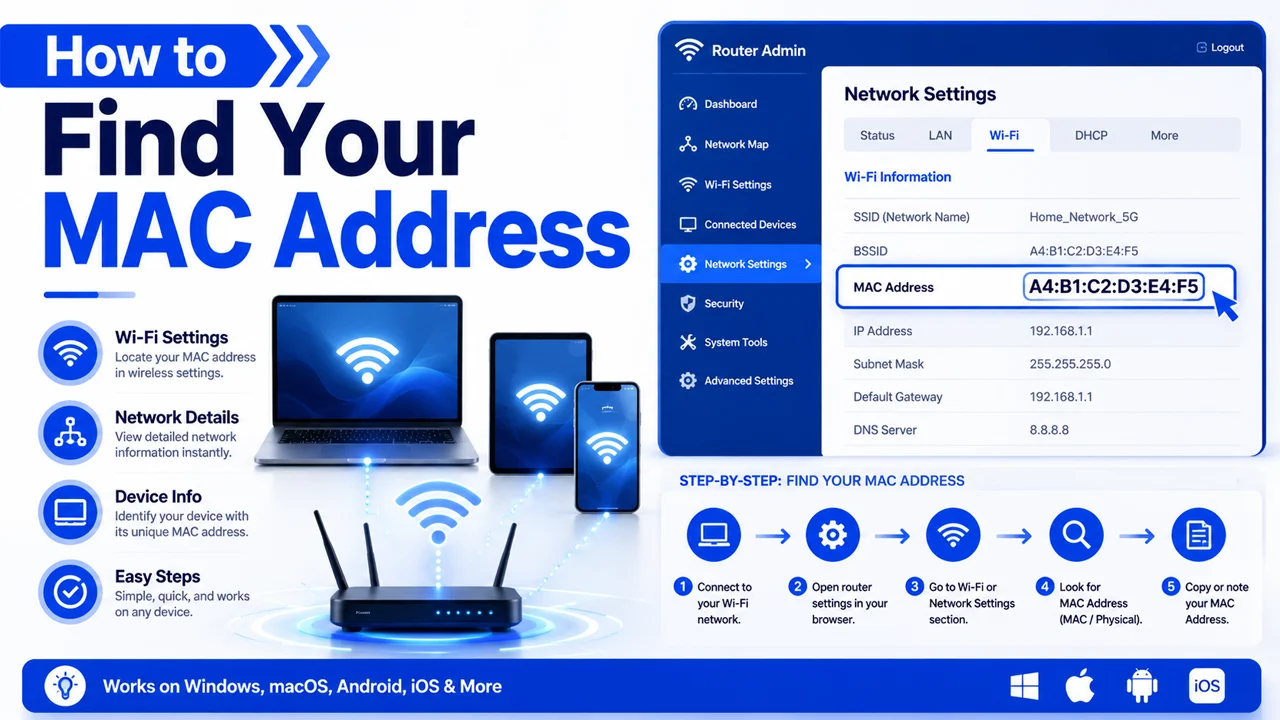
How to Find Your MAC Address on Windows
On Windows, your MAC Address is usually shown as the Physical Address of your network adapter. You can find it quickly by using the Start Menu, Run box, or the CMD command. This method works well when you want to check the MAC Address for Wi-Fi, Ethernet, or any other network adapter on your PC.
- Press Windows + R to open the Run box.
- Type cmd and press Enter.
- In Command Prompt, type ipconfig /all and press Enter.
- Find your active Wireless Adapter or Ethernet Adapter.
- Look for Physical Address.
- The value next to it is your Windows MAC Address.
- You can also search Network Settings from the Start Menu and check adapter details.
How to Find Your MAC Address on Linux
On Linux, you can find your MAC Address through the Terminal using simple network commands. The label may appear as HWaddr, ether, or hardware address depending on your Linux version. This is useful for checking your NIC, Ethernet connection, or wireless adapter details.
- Open Terminal on your Linux device.
- Type ifconfig and press Enter.
- If ifconfig is not available, try ip link show.
- Find your active network adapter, such as eth0, wlan0, or similar.
- Look for HWaddr or ether.
- The value beside it is your MAC Address.
- Make sure you check the correct adapter for Wi-Fi or Ethernet.
How to Find Your MAC Address on iOS
On iPhone or iPad, your MAC Address is shown as the Wi-Fi Address. Apple places this information inside the About section, so you do not need any extra apps or tools. This address can help when connecting your device to a secured Wi-Fi network or using MAC Filtering.
- Open the Settings app on your iPhone or iPad.
- Tap General.
- Tap About.
- Scroll down until you see Wi-Fi Address.
- The number beside Wi-Fi Address is your iOS MAC Address.
- Copy or note it carefully if you need it for router settings.
- Use this address when adding your device to MAC Filtering rules.
How to Find Your MAC Address on Android
On Android, the MAC Address is usually listed inside the About phone or Status section. The exact menu name can be slightly different depending on your phone brand, but most Android devices use similar settings. You may see it labeled as Wi-Fi MAC address.
- Open Settings on your Android phone.
- Go to About phone.
- Tap Status or Status information.
- Look for Wi-Fi MAC address.
- The value shown there is your Android MAC Address.
- On some phones, you may need to open Wi-Fi settings first.
- Check the connected network details if the MAC Address does not appear in About phone.
Common Problems While Finding MAC Address
- Wrong adapter selected: Many devices have both Wi-Fi and Ethernet adapters, so make sure you are checking the correct network adapter.
- MAC Address shown as Physical Address: On Windows, the MAC Address is usually listed as Physical Address, which can confuse some users.
- Private Wi-Fi address enabled: On iOS and some Android devices, private or randomized MAC address settings may show a different address for each Wi-Fi network.
- Command not working on Linux: Some Linux systems may not support the ifconfig command by default, so you may need to use ip link show instead.
- Disconnected adapter not visible: If your Wi-Fi or Ethernet adapter is disabled or disconnected, its MAC Address may not appear clearly in network settings.
- Confusing IP Address with MAC Address: An IP Address looks different and can change, while a MAC Address is usually a fixed hardware address for the network adapter.
- Router page showing many devices: When checking through a router or Xfinity Gateway, it may be hard to identify your device if several phones, laptops, and smart devices are connected.
- MAC Address format looks different: Some systems use colons, while others use hyphens, but both formats can represent the same MAC Address.
- Android menu names vary: Different Android brands may place the Wi-Fi MAC address under slightly different menus like About phone, Status, or Wi-Fi settings.
- Copied address incorrectly: A single wrong letter or number can cause problems when using MAC Filtering, so always double-check the full address before saving it.
Final Thoughts
Finding your MAC Address is a simple but useful skill, especially when you are managing Wi-Fi settings, checking connected devices, or setting up MAC Filtering. Every device, whether it uses Windows, macOS, Linux, iOS, or Android, has a unique MAC Address linked to its network adapter. Once you know where to look, you can find it within a few clicks or by using a basic command. Always copy the address carefully because one wrong character can cause problems while adding it to the router or Xfinity Gateway settings.
Frequently Asked Questions (FAQs)
What is a MAC Address?
A MAC Address, or Media Access Control Address, is a unique hardware address assigned to a device’s network adapter. It helps routers and networks identify your device when it connects through Wi-Fi or Ethernet.
Is a MAC Address the same as an IP Address?
No, a MAC Address and an IP Address are different. A MAC Address identifies the physical network adapter, while an IP Address identifies your device on a network and can change depending on the connection.
Where can I find my MAC Address on Windows?
On Windows, open the Run box, type cmd, and enter ipconfig /all. Then look for Physical Address under your active Wi-Fi or Ethernet adapter.
Why do I need my MAC Address?
You may need your MAC Address for MAC Filtering, router setup, network troubleshooting, or identifying devices connected to your home Wi-Fi network.
Can my MAC Address change?
The original hardware MAC Address usually stays the same, but some devices use private or randomized MAC addresses for Wi-Fi privacy. This means your phone may show a different MAC Address for different Wi-Fi networks.