
Internet speed problems can make even simple online tasks feel frustrating. Whether you are watching videos, joining a meeting, downloading files, or browsing websites, a slow connection can waste your time and disturb your work. In many cases, the issue is not always your internet plan but how your connection is set up.
Slow internet can happen because of weak WiFi signals, poor router placement, an old modem/router, or too many devices connected at the same time. Sometimes, viruses/malware, signal interference, or internet throttling by your ISP can also reduce your speed. That is why it is important to understand the real reason before trying to fix it.
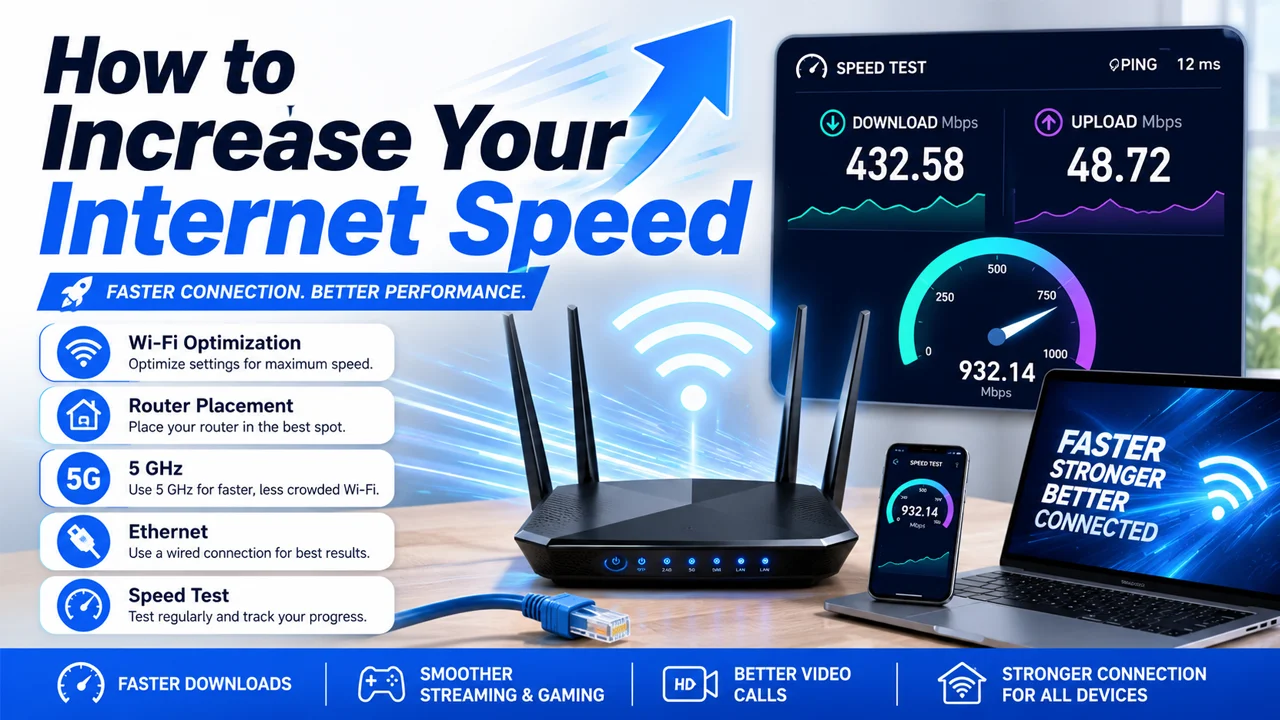
The good thing is that you can improve your internet speed with a few simple steps. Running a speed test, restarting your modem/router, using an Ethernet connection, or switching between the 2.4 GHz and 5 GHz frequency bands can make a big difference. With the right settings and setup, your internet can become faster, smoother, and more reliable.
How to Check Your Internet Speed
Checking your internet speed is the first step before fixing a slow connection. A speed test helps you understand your download speed, upload speed, and ping so you can compare your actual speed with the plan provided by your ISP. For the best result, test your connection more than once and try both WiFi and Ethernet connection.
- Open a trusted speed test website or app on your device.
- Close extra apps, downloads, and streaming tabs before starting the test.
- Run the test near your modem/router to check the best possible WiFi speed.
- Test again using an Ethernet connection for a more accurate result.
- Compare the result with your internet plan to see if your ISP is giving the promised speed.
- Run the test at different times of the day to check for internet throttling or peak-hour slowdown.
Why Is Your Internet Speed Slow?
Your internet speed can become slow for many reasons, and the problem is not always from your ISP. Weak WiFi, poor router placement, old equipment, malware, and signal interference can all reduce speed and cause internet dropouts.
Weak WiFi Connection
- Your device may be too far from the modem/router.
- Thick walls, doors, and furniture can block WiFi signals.
- Too many connected devices can slow down the WiFi connection.
- Weak WiFi can cause buffering, slow browsing, and connection drops.
- Moving closer to the router can improve signal strength.
Poor Router Placement
- Placing the router in a corner can limit WiFi coverage.
- Keeping it inside a cabinet or behind a TV can weaken signals.
- The best position is usually a central and open location.
- Keep the router away from metal objects and large electronics.
- Higher placement, like on a shelf, can help spread signals better.
Old Modem/Router
- An old modem/router may not support modern internet speeds.
- Older routers can struggle when many devices are connected.
- Outdated firmware can also reduce performance and stability.
- Restarting the device may help, but replacement may be needed.
- Upgrading your router can improve both speed and WiFi range.
Internet Throttling by ISP
- Internet throttling means your ISP may slow down your connection.
- It can happen during peak hours when many users are online.
- Some ISPs reduce speed after a certain data limit is reached.
- Streaming, gaming, or downloads may feel slower than normal.
- Running speed tests at different times can help detect throttling.
Viruses/Malware on Devices
- Viruses/malware can use your internet in the background.
- Infected devices may download or upload data without permission.
- This can make your internet feel slow even if the connection is fine.
- Use a trusted antivirus program to scan your device.
- Keep your system and apps updated for better protection.
Signal Interference
- Signal interference can disturb your WiFi connection.
- Microwaves, Bluetooth devices, and cordless phones can affect signals.
- Nearby WiFi networks can also create interference.
- The 2.4 GHz frequency band is more crowded than 5 GHz.
- Switching to the 5 GHz frequency band can improve speed and reduce interference.
Run a Speed Test Before Making Changes
Before changing your router settings or calling your ISP, run a speed test to see your real internet speed. It helps you check download speed, upload speed, and ping, so you can understand whether the problem is with your WiFi connection, modem/router, or internet plan.
- Use a reliable speed test website or app.
- Close downloads, streaming apps, and extra browser tabs before testing.
- Run the test while connected to WiFi first.
- Test again with an Ethernet connection for a more accurate result.
- Compare the results with the speed promised by your ISP.
- Repeat the test at different times to check for internet throttling or peak-hour slowdown.
Use an Ethernet Connection for Better Speed
Using an Ethernet connection is one of the easiest ways to get better internet speed and stability. Unlike WiFi, an Ethernet cable connects your device directly to the modem/router, so there is less signal loss and fewer connection drops. This is especially useful for online gaming, video calls, streaming, and downloading large files. If your WiFi connection feels weak or unstable, try connecting your laptop, PC, smart TV, or gaming console with an Ethernet cable. You may notice faster speed, lower ping, and a smoother internet experience.
Choose the Right WiFi Frequency Band
Your WiFi speed can also depend on the frequency band you are using. Most modern routers offer both 2.4 GHz and 5 GHz bands, and each one works better in different situations.
2.4 GHz Frequency Band
- Best for longer WiFi range and wider coverage.
- Works better through walls, doors, and furniture.
- Good for browsing, messaging, and basic online use.
- Can become slower because many devices use the same band.
- More likely to face signal interference from nearby networks and electronics.
5 GHz Frequency Band
- Best for faster internet speed and smoother performance.
- Works well for streaming, gaming, and video calls.
- Has less signal interference compared to 2.4 GHz.
- Best when your device is close to the modem/router.
- Covers a shorter range and may not pass through walls as strongly.
Use a WiFi Range Extender or WiFi Booster
If your WiFi connection becomes weak in certain rooms, a WiFi range extender or WiFi booster can help improve coverage. It works by receiving your existing router signal and spreading it to areas where the signal is poor. This is useful for large homes, upstairs rooms, basements, or places where thick
Upgrade Your Internet Plan
If you have tried basic fixes but your speed is still slow, your current internet plan may not be enough. A small plan can struggle when multiple people are streaming, gaming, downloading, or using video calls at the same time. For example, an old ADSL2+ internet plan may work for simple browsing, but it may not be powerful enough for modern high-speed needs. Contact your ISP and compare your current speed with better available packages. Upgrading your internet plan can give you faster speed, better stability, and fewer internet dropouts.
Website Speed vs Internet Speed
Website speed and internet speed are connected, but they are not the same thing. Your internet speed depends on your ISP, modem/router, WiFi connection, and plan, while website speed depends on hosting, theme, images, plugins, and website optimization.
- If every website loads slowly, your internet connection may be the problem.
- If only one website loads slowly, that website may have speed issues.
- A lightweight theme like GeneratePress can help a website load faster.
- Large images, heavy scripts, and too many plugins can slow down a website.
- A fast internet plan cannot fully fix a poorly optimized website.
- Test different websites to understand whether the issue is your internet or the website itself.
Final Thoughts
Increasing your internet speed is not always about buying a bigger plan. Sometimes, simple fixes like restarting your modem/router, improving router placement, using an Ethernet connection, or switching to the 5 GHz frequency band can make a big difference. You should also run a speed test before and after making changes so you can see what actually works. If your connection is still slow, check for viruses/malware, signal interference, or possible internet throttling by your ISP. With the right setup and a little troubleshooting, your internet can become faster, smoother, and more reliable.
Frequently Asked Questions (FAQs)
Can viruses or malware slow down my internet?
Your speed may be slower because of weak WiFi, poor router placement, too many connected devices, old equipment, or internet throttling by your ISP. Run a speed test with both WiFi and Ethernet to compare the results.
Does Ethernet improve internet speed?
Yes, an Ethernet connection usually gives better speed and stability than WiFi. It connects your device directly to the modem/router, which reduces signal drops and interference.
Which is better, 2.4 GHz or 5 GHz WiFi?
The 2.4 GHz frequency band is better for longer range, while the 5 GHz frequency band is better for faster speed. If you are close to the router, use 5 GHz for smoother performance.
Can viruses or malware slow down my internet?
Yes, viruses/malware can use your internet in the background and slow down your device. Using a trusted antivirus program can help detect and remove harmful files.
When should I upgrade my internet plan?
You should upgrade your internet plan if your current speed is not enough for streaming, gaming, video calls, or multiple users. Older plans like ADSL2+ may not be enough for modern internet needs.