
Home WiFi Network is something we use every day, but when it suddenly stops working, it can feel really frustrating. You may be trying to watch videos, attend an online meeting, play games, or simply browse the web, but your device keeps saying it can’t connect. In most cases, the problem is not as big as it looks.
A home WiFi connection issue can happen for many simple reasons. Maybe the WiFi password is wrong, the SSID is not selected correctly, the modem/router needs a restart, or the signal is too weak in your room. Sometimes, your Internet Service may also be temporarily down, even if your WiFi network name is showing on the device.
The good thing is that you can fix most WiFi problems with basic troubleshooting steps. Before calling support or changing advanced router settings, it is better to check the simple things first. A quick restart, correct WiFi Credentials, and a better signal position can often solve the issue within 5-10 minutes.
Why Your Home WiFi Network Is Not Connecting
Your home WiFi network may stop connecting because of small issues like wrong WiFi Credentials, weak signal, router errors, or an Internet Service outage. Before going into advanced settings, it is better to check these common problems first.
Incorrect WiFi Credentials
One of the most common reasons your device cannot connect to WiFi is incorrect WiFi Credentials. This means you may be entering the wrong password or selecting the wrong SSID, also known as the WiFi Network Name. WiFi passwords are case-sensitive, so even one wrong capital letter, small letter, number, or symbol can block the connection. If your password was recently changed, forget the old network from your device and reconnect with the updated details.
Weak Network Connectivity
Weak network connectivity usually happens when your device is too far away from the modem/router. Thick walls, closed doors, furniture, and other electronic devices can reduce the WiFi signal strength. Your device may show the network name, but it may still fail to connect or keep disconnecting again and again. Try moving closer to the router or placing the router in a more open area for a stronger and more stable signal.
Router or Modem Glitches
Sometimes the problem is not with your phone, laptop, or password, but with the router or modem itself. A modem/router can slow down, freeze, or create temporary connection errors after running for a long time. Restarting the device can refresh the connection and clear small glitches. If you use an Xfinity Gateway, you can restart it manually, through the Xfinity My Account app, or from the My Account web portal.
Internet Service Outage
An Internet Service outage can also stop your home WiFi from working properly. In this case, your device may connect to the WiFi network, but the internet will still not load. This means the router is active, but it is not receiving internet from the service provider. If you are using Xfinity, check the Xfinity My Account app or customer.xfinity.com to see if there is a service issue in your area.
Restart Your Modem / Router
Restarting your modem/router is one of the easiest ways to fix home WiFi connection problems. When your router keeps running for a long time, it may slow down or create temporary network errors. A quick restart refreshes the connection and helps your devices connect again smoothly.
- Turn off your modem/router using the power button if available.
- Unplug the power cable from the wall socket.
- Wait for at least 30 to 60 seconds before plugging it back in.
- Turn the modem/router back on and wait until the lights become stable.
- Reconnect your phone, laptop, or other device to the WiFi network.
- If you use an Xfinity Gateway, you can also restart it through the Xfinity My Account app or My Account web portal.
- After restarting, wait around 5-10 minutes and then test your internet again.
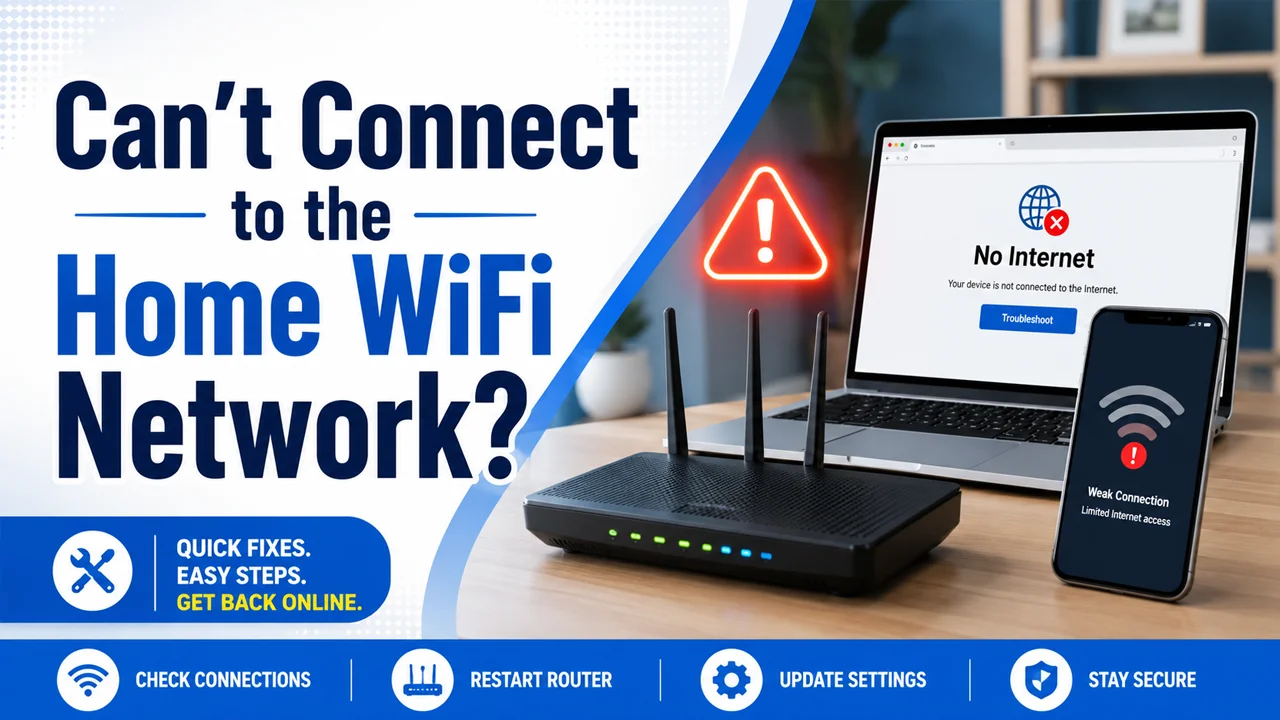
How to Troubleshoot Using Xfinity Tools
If you are using Xfinity, you can troubleshoot your home WiFi network through Xfinity tools instead of guessing the problem. The Xfinity My Account app, My Account web portal, and xFi system can help you check your Internet Service, restart your gateway, and view connected devices. These tools are useful when your WiFi shows up, but the internet is not working properly.
- Open the Xfinity My Account app on your mobile device.
- Tap the Internet tile to view your Internet and gateway details.
- Select your Xfinity Gateway or modem from the device list.
- Tap Restart this device if the option is available.
- You can also visit customer.xfinity.com from a browser.
- Go to the Internet Service tab in the My Account web portal.
- Open the Devices section to check your modem/router status.
- Click Restart Modem or Start Troubleshooting to begin the repair process.
Fix WiFi Connection Issues on Mobile Devices
Mobile devices can fail to connect to WiFi because of saved old passwords, wrong SSID selection, or temporary software issues. If your phone or tablet keeps showing connection errors, start with simple steps before changing router settings. Most mobile WiFi problems can be fixed by forgetting the network and reconnecting with the correct WiFi Credentials.
- Open the WiFi settings on your phone or tablet.
- Make sure WiFi is turned on.
- Select the correct SSID, also known as your WiFi Network Name.
- Tap Forget This Network or Forget if the network was saved before.
- Reconnect to the same network and enter the correct password.
- Remember that WiFi passwords are case-sensitive.
- Turn Airplane Mode on and off to refresh the connection.
- Restart your mobile device and try connecting again.
Fix WiFi Connection Issues on Laptop or PC
If your laptop or PC cannot connect to the home WiFi network, the issue may be linked to saved network settings, weak signal, or disabled wireless options. Sometimes Windows or macOS may remember an old password and keep trying to connect with incorrect details. A few quick checks can help restore network connectivity.
- Make sure WiFi is enabled on your laptop or PC.
- Check that Airplane Mode is turned off.
- Select the correct SSID from the available networks list.
- Forget the saved WiFi network and reconnect with the correct password.
- Move closer to the modem/router if the signal is weak.
- Restart your laptop or PC to refresh network settings.
- Restart your modem/router if other devices are also having issues.
- If needed, open your router admin page using 10.0.0.1, 192.168.0.1, or 192.168.1.1 to check WiFi settings.
Final Troubleshooting Checklist
- Make sure your WiFi is turned on from your phone, laptop, or PC.
- Check that you are selecting the correct SSID or WiFi Network Name.
- Re-enter your WiFi password carefully because it is case-sensitive.
- Forget the saved WiFi network and reconnect with updated WiFi Credentials.
- Restart your mobile device, laptop, or PC to refresh network settings.
- Restart your modem/router and wait until all lights become stable.
- If you use an Xfinity Gateway, restart it through the Xfinity My Account app or My Account web portal.
- Open the Internet tile in the mobile app and choose Restart this device if available.
- Visit customer.xfinity.com and check the Internet Service tab.
- Open the Devices section and use Restart Modem or Start Troubleshooting.
- Move closer to the router if the WiFi signal is weak.
- Keep the router in an open area away from walls, metal objects, and electronics.
- Use a Wi-Fi extender if some rooms have a poor signal.
- Check if your Internet Service provider has an outage in your area.
- Try router login IPs like 10.0.0.1, 192.168.0.1, or 192.168.1.1 if you need to review WiFi settings.
- Check parental controls, firewall settings, or wireless MAC filtering if only one device cannot connect.
- Give the connection around 5-10 minutes after restarting before testing again.
Final Thoughts
When you can’t connect to the home WiFi network, the issue is usually linked to simple things like wrong WiFi Credentials, weak signal, router glitches, or a temporary Internet Service problem. Start with basic steps such as checking the SSID, typing the password again, restarting your device, and rebooting your modem/router. If you use Xfinity, tools like the Xfinity My Account app, My Account web portal, and xFi can make troubleshooting much easier. In most cases, these steps can bring your WiFi back online within a few minutes without needing advanced technical help.
Frequently Asked Questions (FAQs)
Why is my home WiFi not connecting?
Your home WiFi may not connect because of an incorrect password, wrong SSID, weak signal, router issue, or Internet Service outage. Start by restarting your device and modem/router.
Why does my WiFi say connected but no internet?
This usually means your device is connected to the router, but the router is not getting internet from your service provider. Restart the modem/router and check for a service outage.
How long should I wait after restarting my router?
After restarting your modem/router, wait around 5-10 minutes for the connection to fully refresh. Once the lights are stable, try connecting your device again.
Can a wrong WiFi password stop my device from connecting?
Yes, even one wrong letter, number, symbol, or space can stop your device from connecting. WiFi passwords are case-sensitive, so enter the password exactly as it is.
What should I do if only one device cannot connect to the WiFi?
If only one device has the issue, forget the WiFi network on that device, restart it, and reconnect with the correct password. Also, check if the device is blocked by parental controls, xFi, or wireless MAC filtering.